Tuesday, 29 March 2011

The iPad and the Extranet

Well the iPad 2 is out. Queues are forming outside shops as word of shipping delays and product shortages spread. It seems to be that demand for tablet devices just keeps getting stronger and stronger and yet they’re not even fully fledged computers? They are difficult to write on, spreadsheets are fiddly and there is very limited local storage. My iPad filled up long ago with photos and music leaving me having to make a choice which albums and photo’s to exclude from the obligatory iPad to iTunes syncing process. It’s okay, a friend recently observed, surely you can just put an SD card in and expand the storage. Nope. Neither there is an SD card slot, but even if there were, iPads don’t really have a file system to speak of so there would be no way to access it.

iPads, iPhones and the like do of course have an underlying file system otherwise how would they work, but the point is that there is no typical way to browse the contents of your device, no standard ‘My Documents’ folder. There are other limitations too, such as the inability to plug in peripherals via USB cable (no USB slots). However none of these prevent the iPad, or the impending avalanche of Android, Blackberry and HP WebOS devices, from providing a productive and enjoyable computing experience.

In fact, here at project-extranet we think the devices are compelling because of their limitations, not in spite of them. The world is changing, software is moving online and data is being freed from the device. Collaboration software, exactly like project-extranet, is now the file system for your business; available to any of your devices, be they historic platforms like Windows or Mac OSX, or one of the new breed such as iPad, iPhone, Android, Blackberry or,  to really show that this is the future, devices running the upcoming Google Chrome OS, essentially nothing more than a web browser with a keyboard.

These new devices offer a much simpler computing experience, and for simpler, you can also read cheaper. Cheaper to buy, cheaper to maintain; they don’t really go wrong, catch viruses or get corrupted system files, and if they do, they are essentially disposable items. Your business is safely stored in the project-extranet cloud, and your other business apps are either other online applications or can be reinstalled by visiting the appropriate app store.

We’re not there yet though. Traditional computing platforms still dominate, but the queues in the streets of London and the wave of new platforms show that this revolution is underway.

Right from the start we have been designing project-extranet to be a part of this march to ubiquitous computing, offering core functionality useful to any business as well as the ability to expand the extranet via your own bespoke extranet apps, and we will continue to enhance and improve the extranet as this new IT business model develops.

So here at project-extranet, we love the iPad, especially for it’s limitations!
Gerry

Tuesday, 22 March 2011

Create an extranet portal by linking your extranet to your website

Extranet systems are designed to streamline your business, save you and your staff time by having a central repository where all project information, documents, calendar, knowledge bases etc can be accessed 24 hours a day, 7 days a week.

When setting up your extranet it’s important to make sure that it’s easy for your users to access. We have put together a handy little guide telling you how to integrate your project-extranet solution with your website, including how to place a link on your site and also how to send users back when they have finished and log out.

'Simplifying login - Linking your extranet to your website' as well as other how-to’s can be found in our extranet guides section now.

Gerry

Monday, 14 March 2011

New guide: Adding users to projects


We've had a few people recently tell us that adding users to projects can be a little long winded, and if you go about it the wrong way then it can be.

So we've posted a new article in the extranet guides section explaining the two ways this can be done. Find out more here: 'Two ways of adding users to projects'

Gerry

Thursday, 10 March 2011

System status update

We have been addressing two issues that have been affecting a number of customers this morning who have had difficulty uploading either large files or large numbers of files (> 100) into a single project directory.

Both these issues are now resolved

Gerry

Wednesday, 2 March 2011

Newsfeeds are coming to project-extranet

We have a new update coming to project-extranet that we are planning to roll out early to mid next week, starting 7th March 2011.

As usual I will post a notice to our extranet news page with the all the details, however before we go live with this update I want to quickly let you know about one particular feature we are introducing called project newsfeeds. The project newsfeeds brings information that was previously hidden away in the project log app and puts it center stage; showing on the main summary page, the project home page and also on a new user profile page.

With one glance you can see all recent activity in your projects, activity that has happened today or all the things that have happened since you last logged in.

You can view the newsfeed for all your projects, on a project-by-project basis or on a per user basis; users who have the appropriate permission can even post their own messages into the newsfeed.

We think this update really brings your extranet to life by bringing the tools and collaboration models popularized by social media directly in to benefit your business. We’ve had overwhelmingly positive feedback from our beta testers, we’re really excited to be getting project newsfeeds up and running in our project-extranet collaboration system.

However if you are one of our existing customers, currently going through a trial or thinking about adopting project-extranet in your line of work and reading this and thinking, “oh no this is not for me!” don’t worry.

We recognize that this new feature expands the possibilities of the system and so we have included options for switching the newsfeed off completely.

So now I’m going to explain how to do this and, if you follow these instructions, your extranet will work exactly as it is now; well apart from some nice performance increases in the shared calendar component, which I’m going to assume you don’t mind.

Firstly some screenshots to show what I’m talking about:

Extranet home page


Extranet home page without newsfeed

Extranet home page with the newsfeed

Project Summary


Project summary without the newsfeed

Project summary with the newsfeed

The user profile page


The new user profile page


Removing the newsfeed from the home page
1. Log in as an administrator and click on your extranet settings cog.
2. Click on the system settings (the gears icon)
3. De-check the option ‘Allow Newsfeed on homepage’
4. Press Apply

Actually, each user can independently choose whether they want to display the newsfeed on their homepage. This is controlled via their profile settings. If you de-check this box the option view the newsfeed on the homepage in the profile is no longer available, effectively removing it from the system.


Remove the newsfeed from the user profile page
The new user profile page newsfeed shows items attributed to that user on projects both they and the person viewing their profile is a member of.

The steps to remove this newsfeed are very similar to those above:
1. Log in as an administrator and click on your extranet settings cog.
2. Click on the system settings (the gears icon)
3. De-check the option ‘Show Newsfeed on User Profile’
4. Press Apply


Removing the newsfeed from a project.
The choice to display the newsfeed on the homepage and on the user profile page is not mutually exclusive. You can show one or the other. The same is true for using the newsfeed within your projects; you can use it (or not) regardless of the options taken previously.

The newsfeed can be added to a project in the same way as any other extranet project app. Simply open the project settings and check/de-check the appropriate app.

There are two project apps in play here. The Newsfeed Summary App and the Newsfeed App. As the name suggests the ‘Newsfeed Summary’ shows/hides the newsfeed in the project summary:

The second controls the link in the project menu. Use this app to gives you full access to the projects newsfeed via a standard link in the project menu.

We really like the newsfeed feature, but if it doesn’t work for you then hopefully these control options gives you the flexibly to set the extranet up as you need it.

If would like to get your hands on the update for a trial run before it goes live we’d be more than happy to set you up with an account on our beta test site.

If you don’t want the newsfeeds feature please do let us know. We will make sure it is disabled on your account as soon as the update goes live. Contact your support contact or get in touch via the details on www.project-extranet.com/contact.

Finally, keep watching www.project-extranet.com/news for all the latest extranet news and updates or follow us on our extranet twitter where we post progress updates and other news from around the world of project collaboration.

Gerry

Saturday, 26 February 2011

Creating simple workspaces - ‘Single Project Redirect’ explained

In this blog post I’m going to discuss a feature of project-extranet called Single Project Redirect. I’ll explain how it works and how you can use it to make accessing your extranet easier.

This article assumes you have already setup your own extranet, so if you haven’t done so, get yourself over to www.project-extranet.com/try and sign up for a free extranet demo account.

Why and how
As someone who has the need for an extranet facility - a project manager, business owner or administrator - you are probably responsible for more than one project. So when you access your extranet you will see, by default, the main summary home page. This contains an aggregated view of your system: all your project calendars combined into one; your top contacts; recently viewed and updated projects list. This will allow you to quickly access the information you need.

As a person responsible for a range of tasks, you should find this aggregated launch portal very useful. But for users who are only a member of one project within your extranet, the home page summary view is potentially confusing; all they really need to be able to do is to get to their single project.

This is where the Single Project Redirect switch comes in. If enabled, which in project-extranet it is by default, then users who have just the one project assigned to them get taken straight to that project, by-passing the home page summary and saving the user a click.

So, Single Project Redirect makes the interaction for users who only have one project much easier - especially when combined with the default starting app feature that allows you to set the default starting page users see when accessing a project.

For example, if you are setting up a file sharing project, by setting the default project app to ‘documents’ and ensuring Single Project Redirect is switched on, a user logging in to your extranet can be taken straight to the documents file structure.

You can use these two features together to create a range of project spaces for your customers depending on their individual needs.

So just to recap, the features for Single Project Redirect are:

  • Single Project Redirect can be enabled/disabled via the ‘Extranet Settings > System Settings’ option.
  • Single Project Redirect only applies to standard user accounts, not system administrators.
  • If a user has access to only one project, they get taken straight to that project upon login.
  • The Home, Projects and Contacts buttons are hidden when the redirect is enabled, the rationale being that there is no point giving users access to the projects list when they only have access to one project. The home button will take them back to their project and the contacts are all available via the projects contacts app, if you have chosen to use it.
  • As soon as a user is given permission to view a second project upon logging in they view the standard home summary page and the Home, Projects and Contacts main options reappear.

I hope that explains this feature and demonstrates some of the powerful ways you can use project-extranet to achieve your perfect extranet solution. As always though, if you have any questions, comments or suggestions, please get in touch using the details on our contact pages.

And don’t forget to keep up-to-date with extranet news, hints and tips, details of updates, and also find us on twitter for the very latest from the world of online collaboration.

Gerry

Saturday, 12 February 2011

Extranet Update: Sub Folders, Hidden Folders and Templates now live

It seems like it was only yesterday we were buried knee deep in snow but it already feels like spring is just around the corner. Looking at the number of updates and new features we’ve added to project-extranet since the turn of the new year it feels like we’re on a bit of a roll.

And here we are with another, bringing in new features based directly on extranet customers feedback.

This update, (which if you are interested takes us to v3.1.0) contains the usual little usability enhancements and tweaks as well as some slight layout modifications aimed at making the extranet work better for those iPad wielding amongst you. The main feature of this update however, is reworked file sharing.

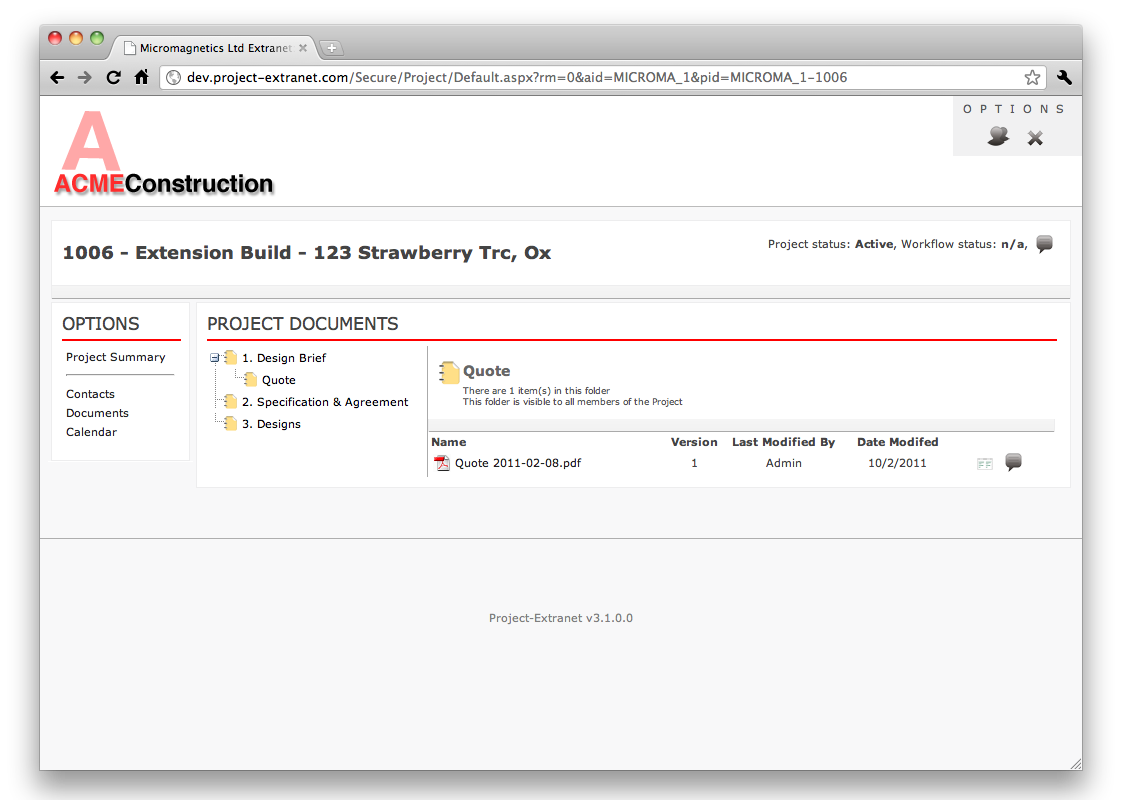
Up to now, when setting up projects it has not been possible to create a folder hierarchy. As customers have expanded the use of their extranets and have started to load up literally hundreds of files to make available to project members, this flat folder structure has, well lacked a little. You’ve told us and we've noticed.

So as of now, this is no longer the case and from this update onwards you can create a full, no restrictions folder tree.


Before: Flat folder structure


After: Build a full folder tree for better organisation


Hidden Folders
A number of you have also asked for ‘hidden folders’ within a project and I’m please to announce that this is now possible as well. You can now mark a folder, or a whole folder branch as hidden. This makes it viewable only by project owners and users with full modify access. For everyone else in the project, it is completely hidden.

As can be seen in these screen shots, hidden folders are differentiated from standard folders by using using grey folders icons.

Administrators and Project Managers can 
view full tree including hidden folders


Other users can only see normal folders. Hidden folders
are not visible.


Templates
Project Extranet has long had the the ability to create templates from which you can base your projects on. The idea behind project templates is simple; it allows you to create templates that contain settings for your common project types, meaning you don't have to set them up each time. Template include which project apps to use, folder structure, default starting app etc.

To compliment this, we have introduced a number of standard built in templates which are setup for common uses for Project-Extranet. These are:

Customer Accounts
Document Sharing
Meeting Workspace
Photo Sharing
Project Collaboration
Shared Calendar
Shared Contact List
Task Management

The names are pretty self-explanatory. Hopefully these new built in project templates will give you (and new project-extranet users) a quick and simple way to get the most out of your extranet. They are of course only suggestions, and you can edit/delete these templates and create your own to suite your needs. Simply go to Extranet Settings > Templates.

That’s pretty much it for this release, we’re not out of ideas just yet and have some other interesting developments just around the corner. In the meantime, please keep the feedback coming, we’d love to hear from you and how your business is using your Extranet.

If you are not already a customer of Project-Extranet you can sign up for a free, no obligation trial at www.project-extranet.com.

The latest extranet updates and news can be found at www.project-extranet.com/news or join us on twitter, facebook and blogspot.

Gerry